
MeowID API Illustrated Integration Guide
Interface checked
Go from creating a cat identity to making your first recognition request.
MeowID provides cat identity recognition through an API. Enroll confirmed reference photos under a cat profile, then submit a query photo to find similar cats in the same project. Use the API metadata field for your own notes and attributes.
Use the screenshots and steps below to create a project, add a cat, enroll a photo, create an API key, and call the recognition endpoint. The example name is Mimi; use any project and cat names you like.
The screenshots were captured on September 29, 2026. Numbered callouts match the captions. Some enrollment and recognition screenshots show historical records from an existing project.
Screenshot text and callouts are translated; layout, photos and historical results are preserved. Console wording may differ.
Before you start
Prepare a MeowID account and two different photos of the same cat: one for enrollment and another for testing. Start with a clear, well-lit photo containing one cat.
Workflow: create a project → create a cat profile → enroll a reference photo → wait for completion → test recognition → create an API key → call the API.
Use the same project for enrollment and recognition. API requests go to https://platform.meowid.net.
1. Sign in or create an account
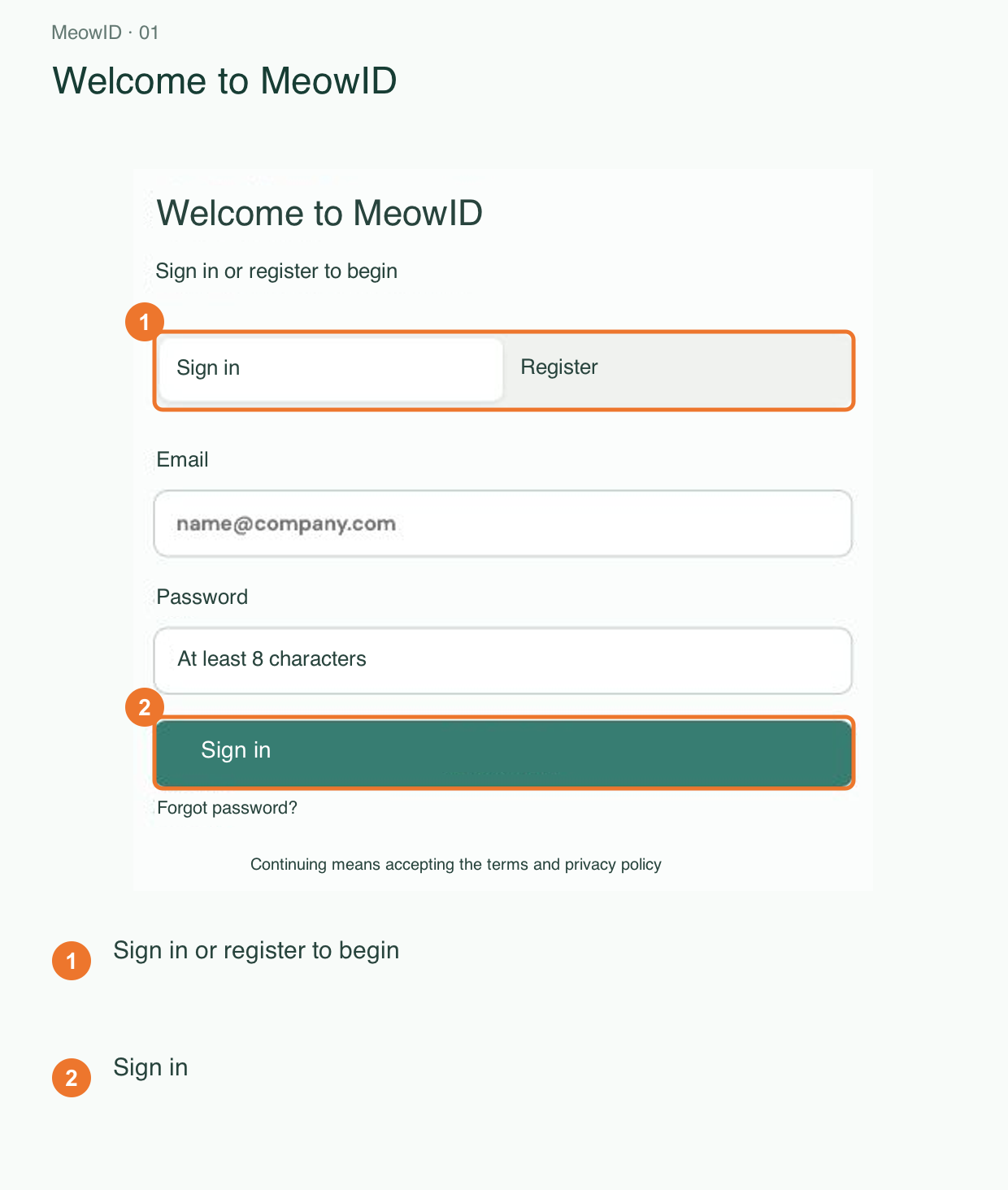
Open the MeowID console. Sign in, or register a new account and then sign in.
2. Create a project and copy its ID
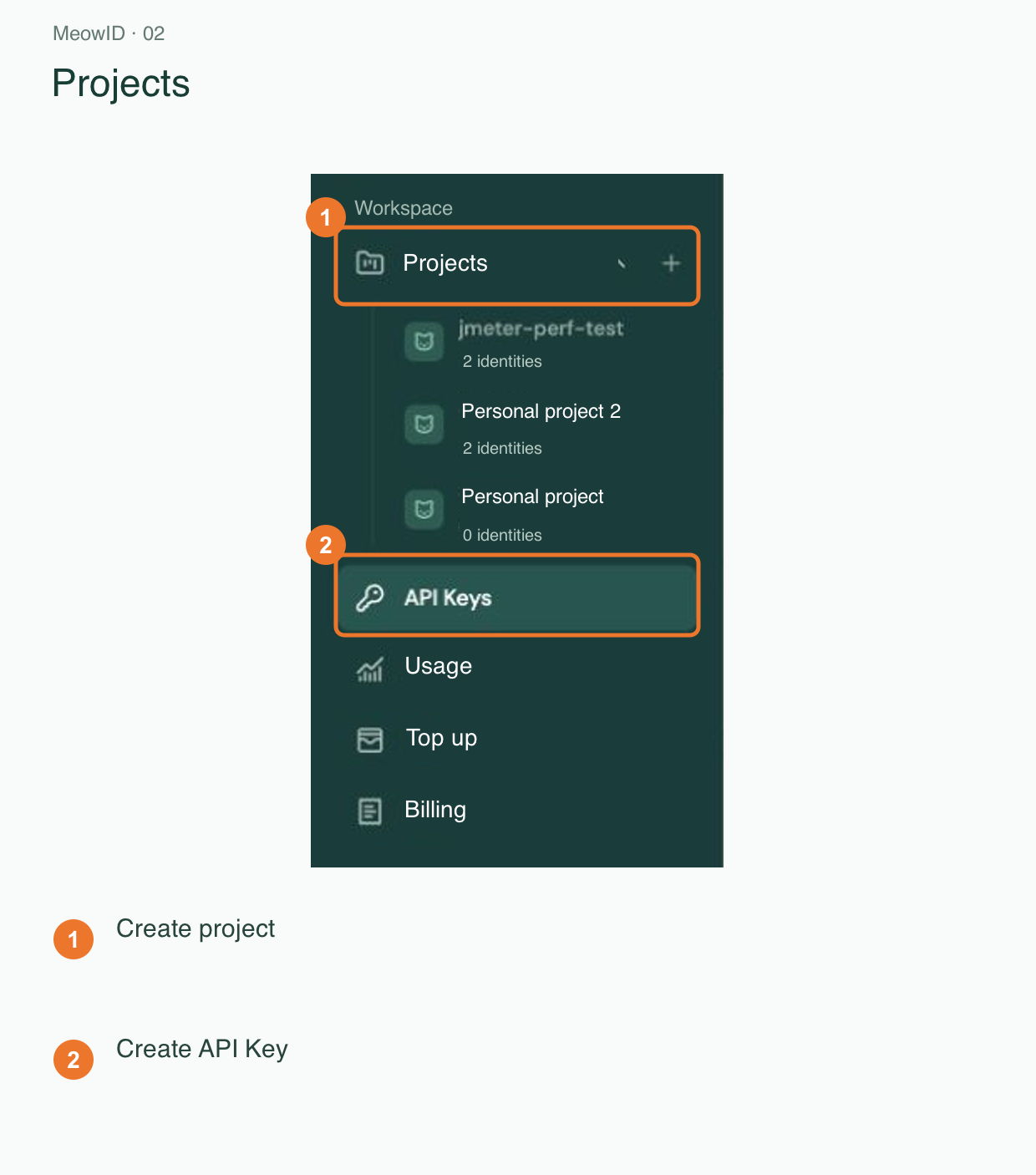
In the left navigation, select the plus icon next to Projects. If the navigation is collapsed, open it with the menu button first.
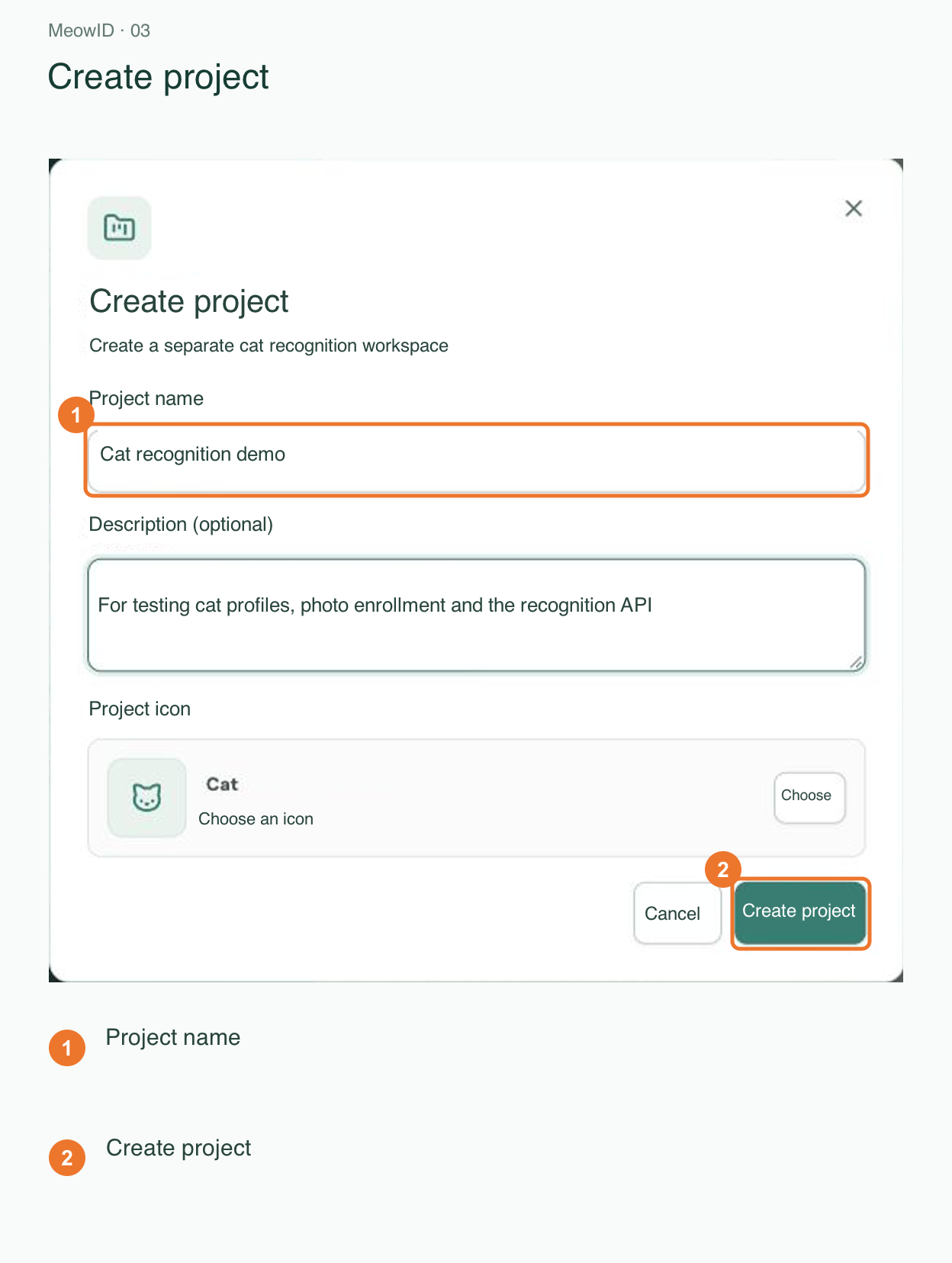
Enter a project name, such as Cat Recognition Demo, and optionally add a description.
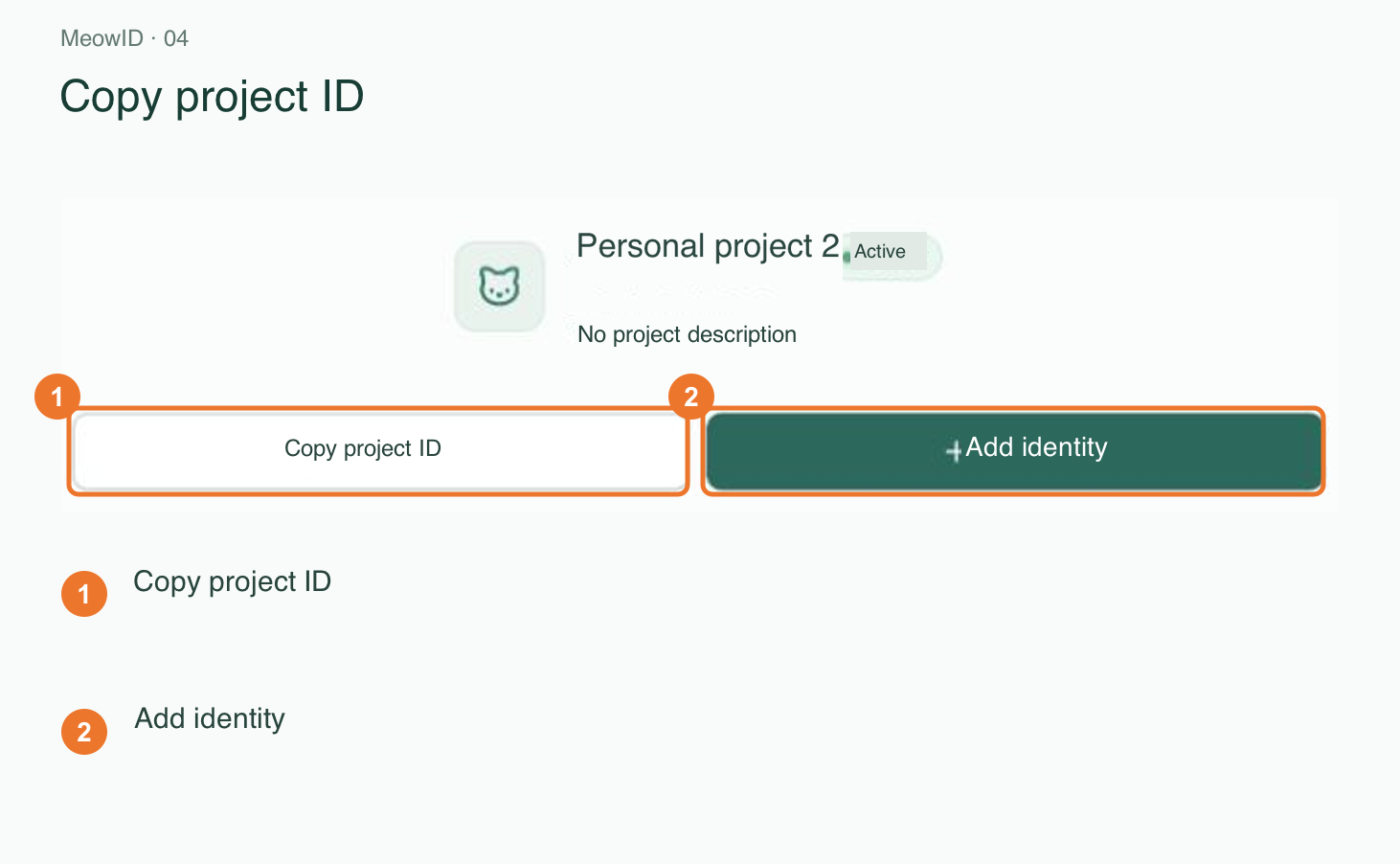
Open the project and copy its project ID. This is YOUR_PROJECT_ID in the API URL. Project data, cats, and vectors are isolated from other projects.
3. Create a cat profile
Select Add identity, enter a name such as Mimi, and leave the identity active so it can participate in recognition.
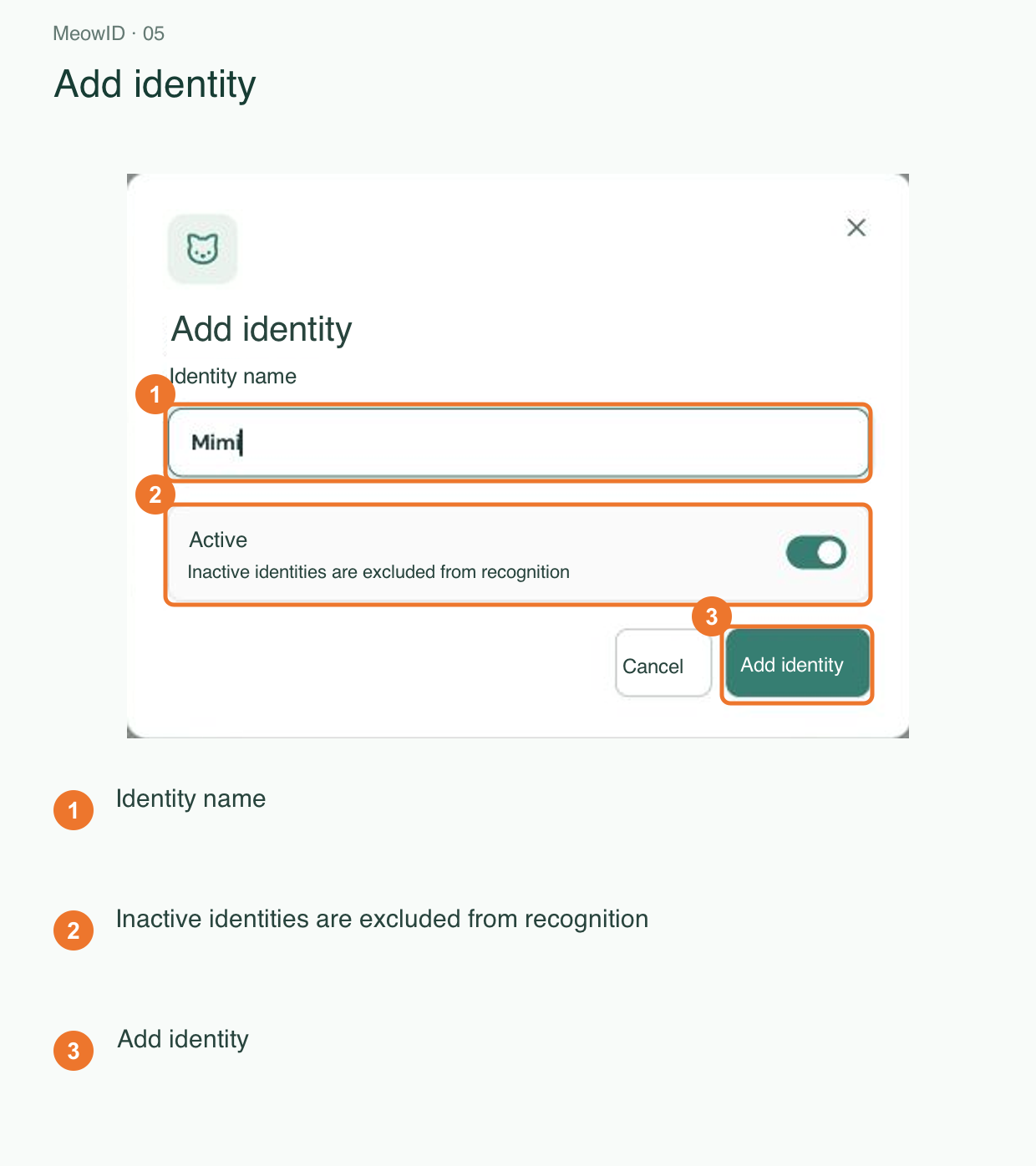
For custom attributes such as personality or notes, use the API metadata field shown later in this guide.
4. Upload a reference photo
In Identity management, open the cat's photo library and choose Add enrollment image.
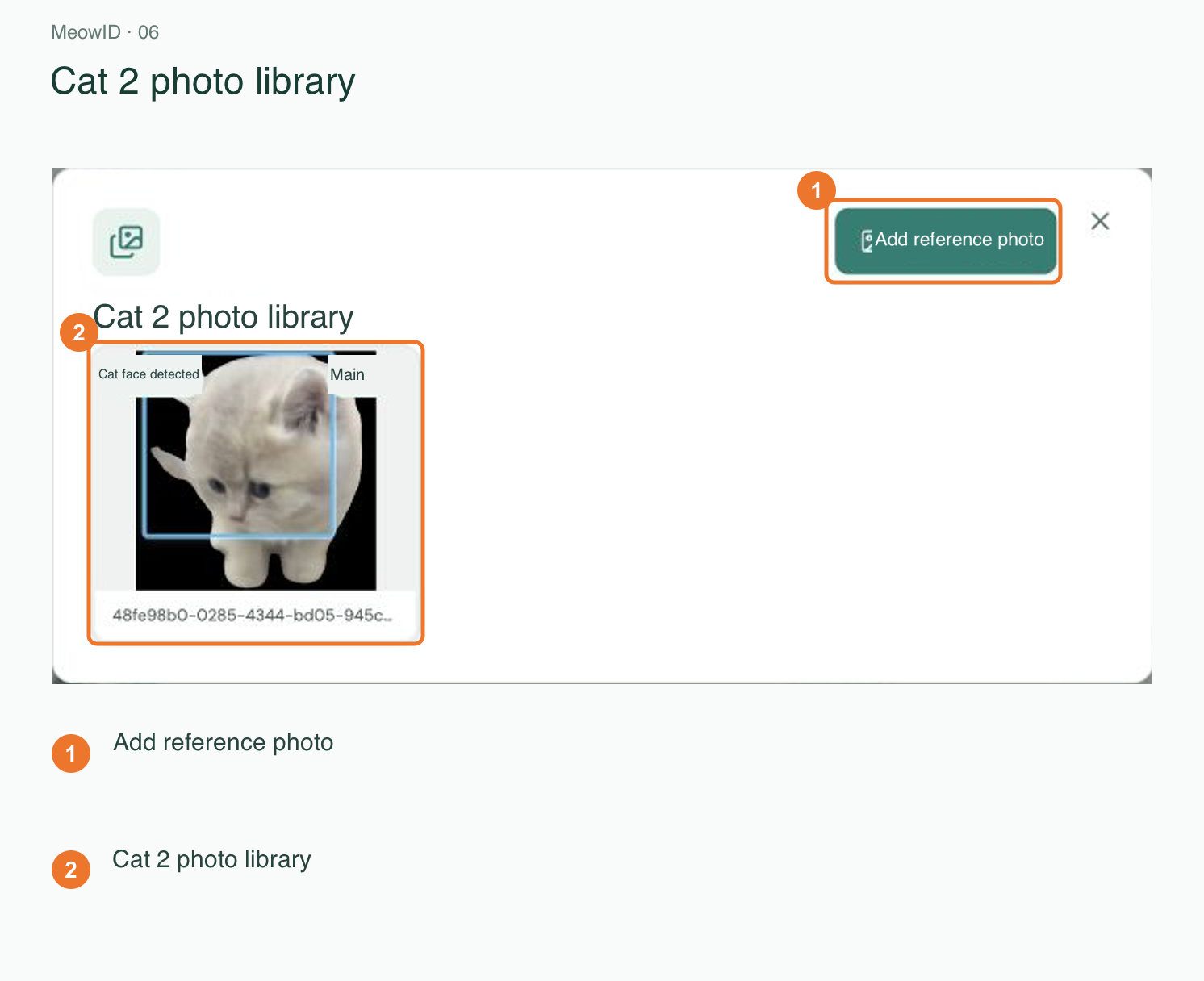
Select or drag in a JPEG, PNG, or WebP image, confirm it belongs to this cat, and upload it. Start with one clear, single-cat photo; add more views of the same cat after the first enrollment succeeds.
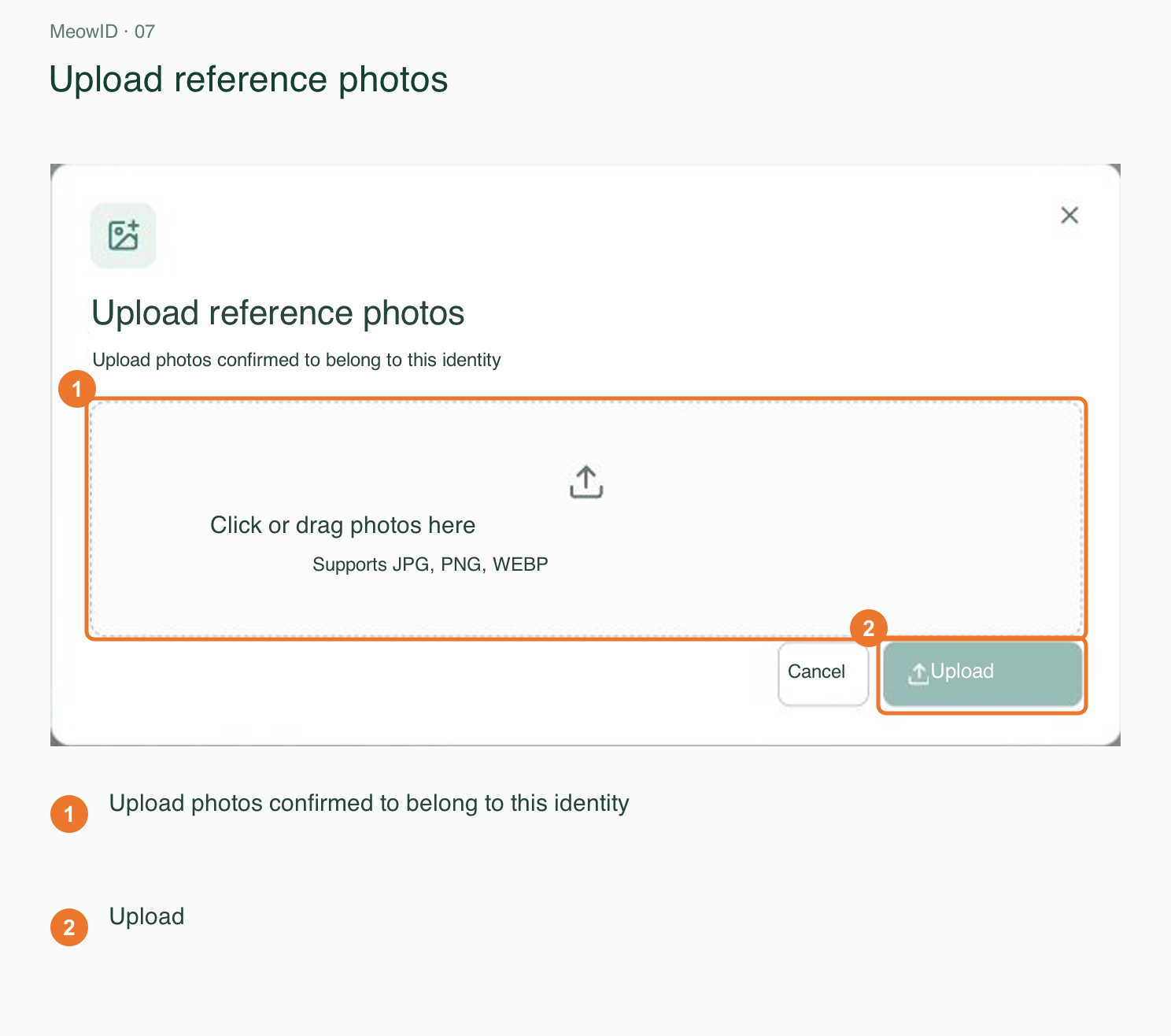
Do not enroll photos of different cats under the same identity.
5. Wait for enrollment to finish
Upload acceptance does not mean processing is complete. In the project task queue, find the enrollment task and wait for status=completed.
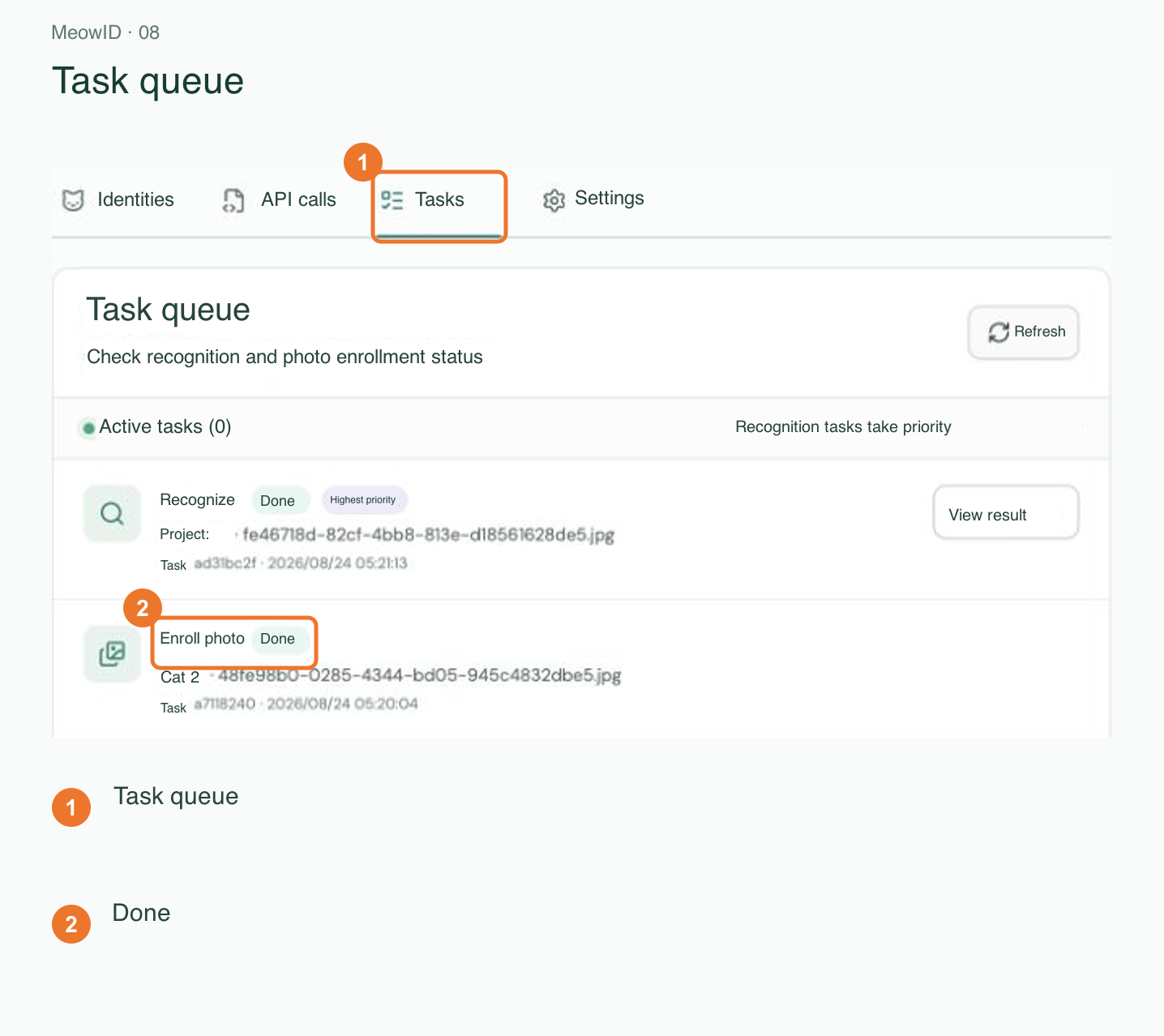
queued and running mean processing is underway. For waiting_user, select the target cat in the console. For failed, review the error and retry after fixing the issue.
Test recognition only after enrollment completes.
6. Test recognition in the console
Open Identity management → Recognition test and upload another photo of the same cat. For the example, set the result count to 3 and the rejection threshold to 0.35.
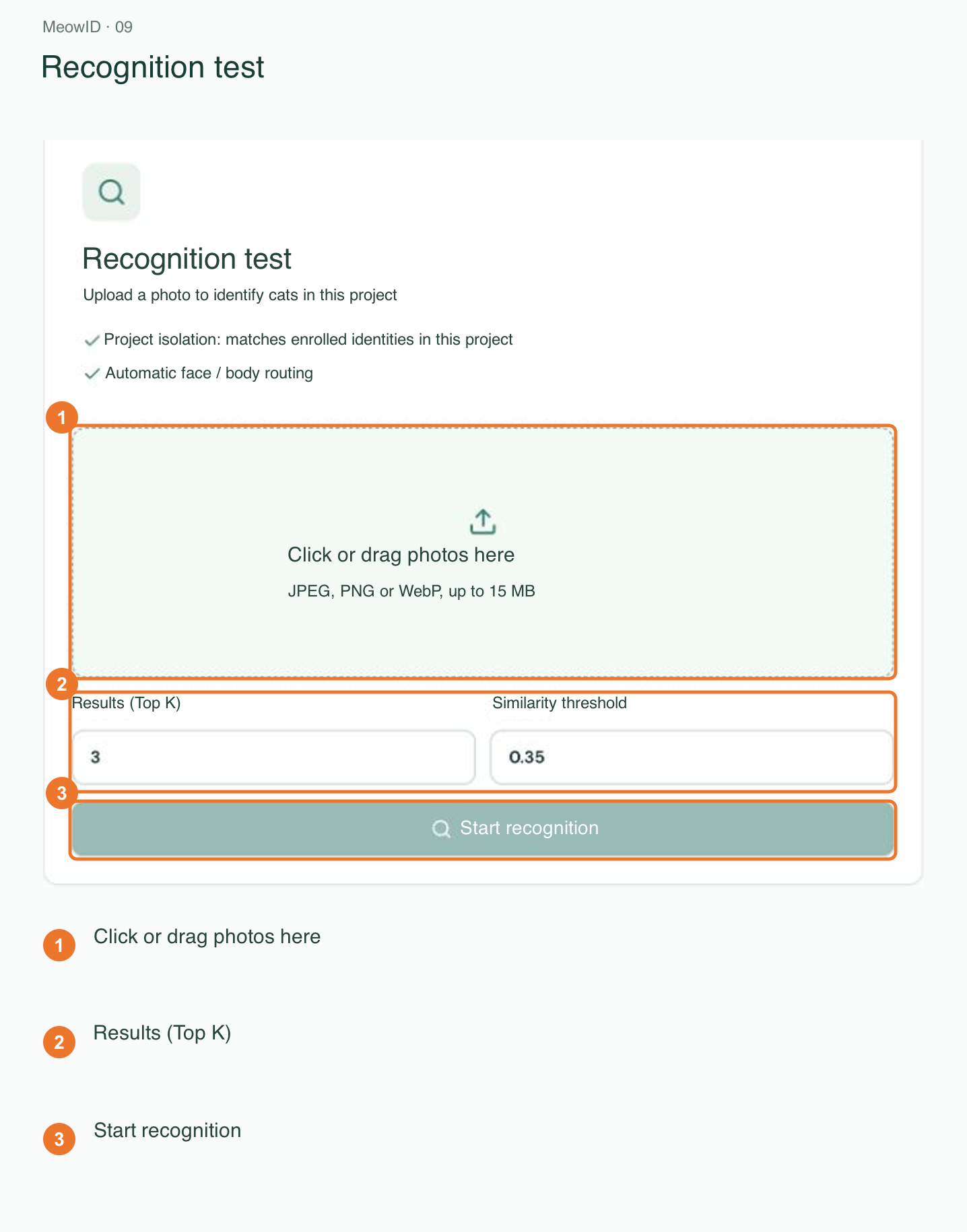
top_k=3 returns at most three candidates. The 0.35 threshold is only an example; tune it using your own photos. A different photo helps test changes in angle, lighting, and background.
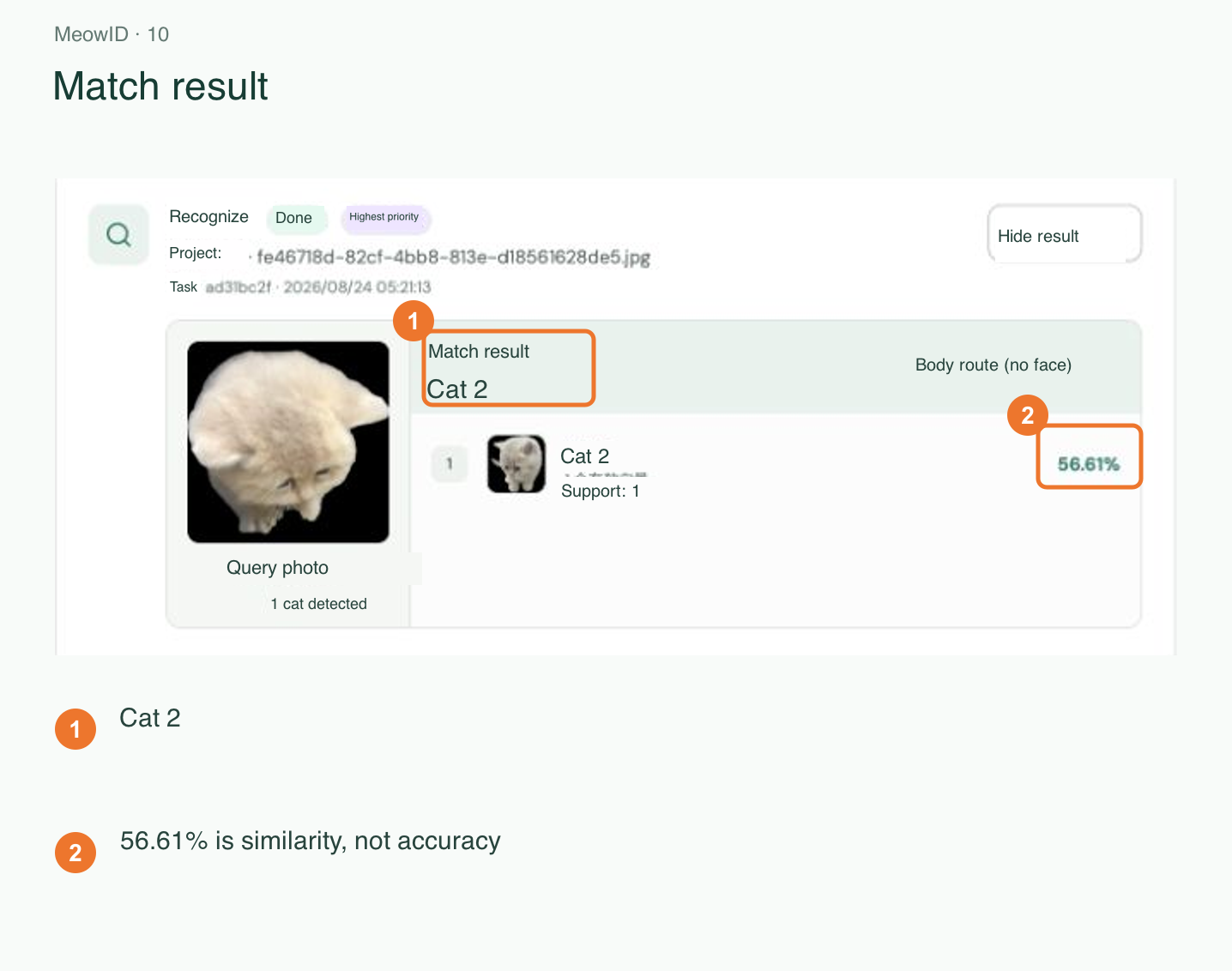
The screenshot below shows a historical result. Its 56.61% is a similarity display, not a 56.61% probability of correctness. The task used the body route because no face was detected; whole-body matching can still be used.
7. Create a project API key
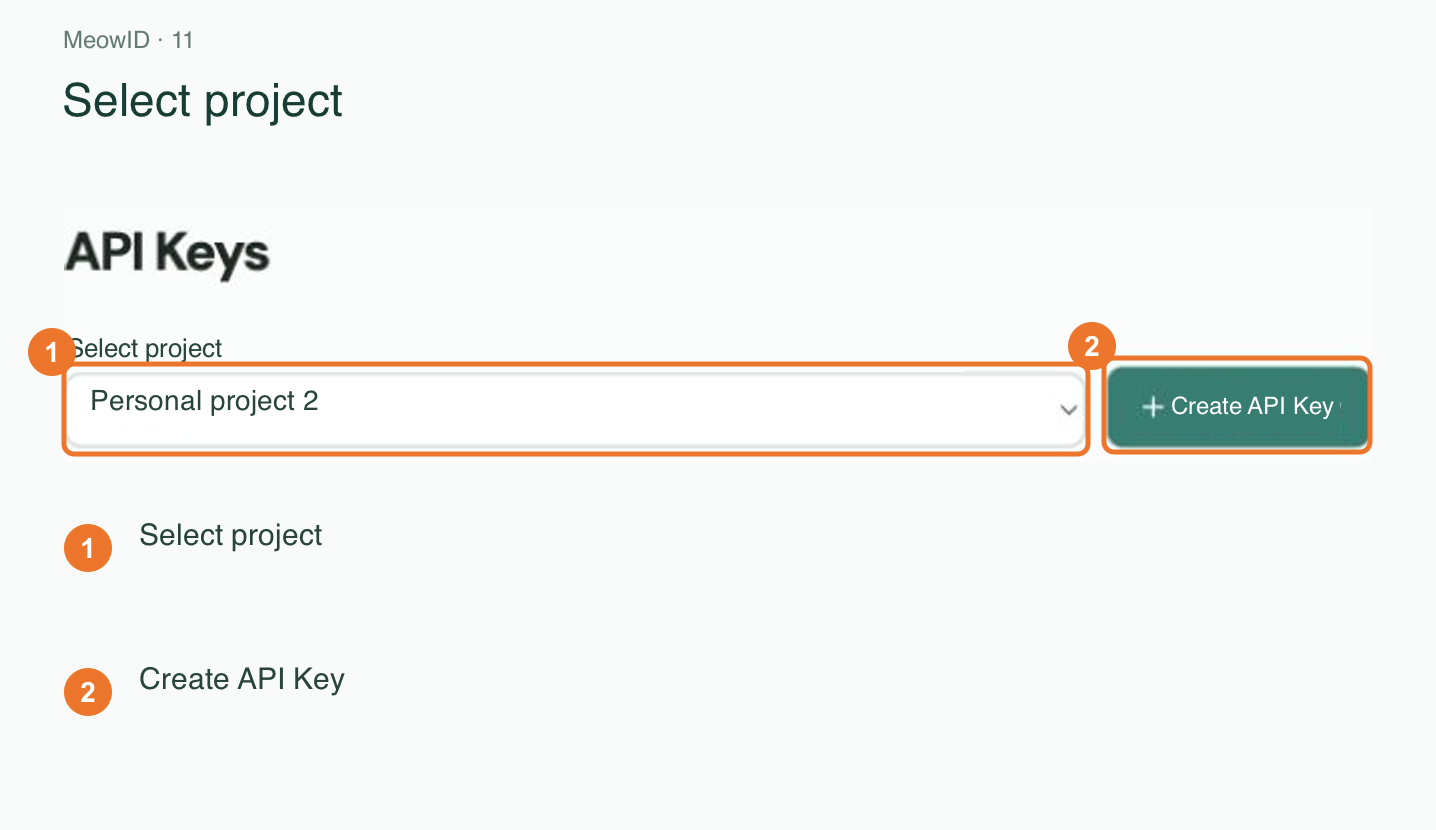
Open API Keys and make sure the correct project is selected. Create a key with a recognizable name, such as meowid-demo-server.
Choose Custom and keep only recognition:write for this recognition-only example. Verify that other permissions are unchecked.
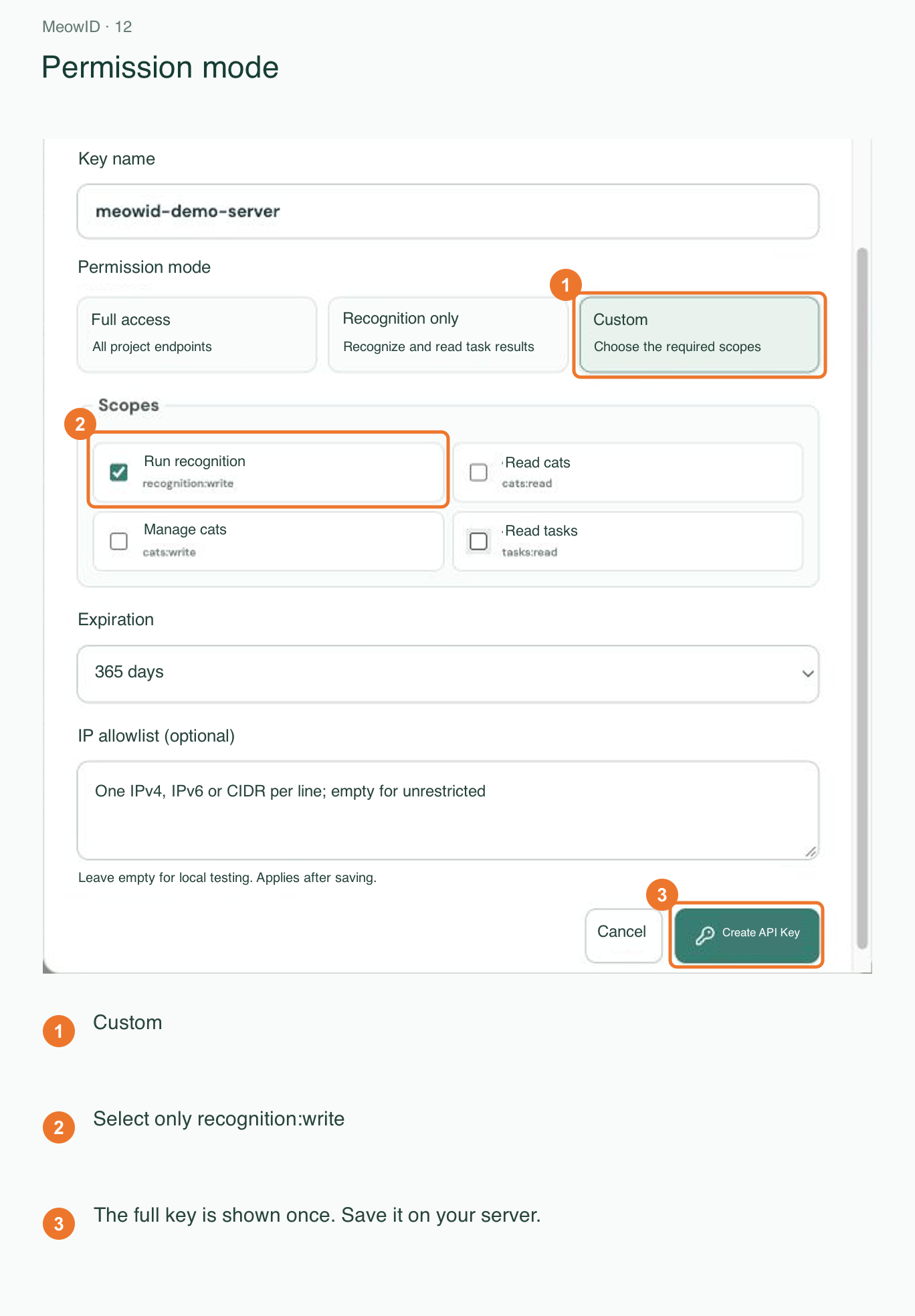
Set an expiry and IP allowlist if needed. The full key is shown only once: store it in a server-side environment variable or a secrets manager. Never put it in public frontend code, screenshots, or Git.
8. Call the recognition endpoint
Replace YOUR_PROJECT_ID and YOUR_API_KEY, then run this command from the directory containing query.jpg.
curl -sS -X POST "https://platform.meowid.net/v1/projects/YOUR_PROJECT_ID/search?top_k=3&threshold=0.35" -H "Authorization: Bearer YOUR_API_KEY" -F "[email protected];type=image/jpeg"
For PowerShell, use curl.exe. For PNG or WebP, update the filename and MIME type accordingly. The multipart field name must be image. Do not set the overall multipart Content-Type manually; curl creates the required boundary.
The search endpoint waits for recognition to finish and returns the result. Check your balance and billing details before calling it.
9. Read the recognition result
This is a shortened format example, not a literal response:
{
  "cat_count": 1,
  "unknown": false,
  "matches": [{
    "cat_id": "example-cat-id",
    "cat_name": "Mimi",
    "score": 0.91,
    "support": 2
  }]
}
Check unknown before using any candidate. When it is true, do not automatically assign the cat even if candidates are present. score is similarity, not the probability that the identity is correct. support is the number of usable vectors supporting the candidate.
For multiple cats, inspect each item in candidates; the top-level result describes only the first detected cat. If cat_count is zero, do not access matches[0].
Optional: create profiles through the API
To automate enrollment, add cats:write and tasks:read to the key. Keep recognition:write if the same key will also run recognition.
| Action | Endpoint | Next step |
|---|---|---|
| Create a cat | POST /v1/projects/{project_id}/cats | Save the returned ID as the cat ID. |
| Enroll a photo | POST /v1/projects/{project_id}/cats/{cat_id}/images | Send multipart field image; save task_id. HTTP 202 means accepted. |
| Check the task | GET /v1/projects/{project_id}/tasks | Find the matching task ID and wait for completed. |
Example profile with custom metadata:
{
  "name": "Mimi",
  "metadata": {
    "personality": "Friendly, loves sunny spots",
    "notes": "Add fields that suit your application"
  },
  "active": true
}
personality and notes are application-defined metadata, not values inferred by recognition. Use cat_id to connect a result to your own profile data. If the task is not on the first page, increase the list offset. Handle waiting_user in the console and inspect errors for failed tasks.
Once enrollment is complete, new cats and reference photos can be added without retraining the model.
Troubleshooting
| Issue | Check |
|---|---|
401 | Check the key and the Authorization: Bearer header. |
403 | Check project ownership, permissions, key expiry, and IP allowlist. |
429 | Reduce request concurrency and retry later. |
| Photo uploaded but no match | Confirm enrollment completed, the cat is active, and both requests use the same project. |
unknown=true | Check reference photo quality and tune the threshold with representative samples. |
| Several cats in one photo | Evaluate every item in candidates. |
See the full developer documentation for the complete API reference.